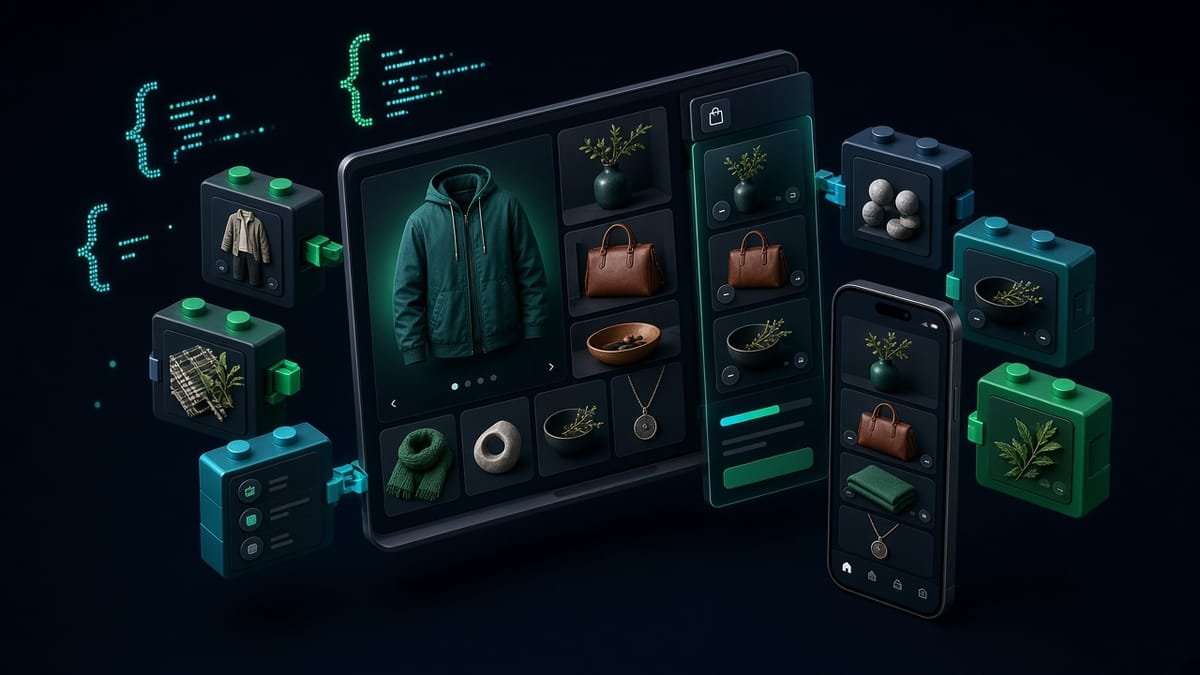
Custom Shopify Sections: Build Them With Liquid and Schema
How custom Shopify sections work: Liquid, schema settings, blocks, presets and limits, plus a safe build process for Indian D2C stores. Read before hiring.

Summary of this article
- Defines a Shopify section and explains how Liquid, schema, blocks and presets work together in Online Store 2.0 themes.
- Maps common merchant needs to schema setting types in a table, from text and images to products and colour schemes.
- Explains section blocks versus theme blocks and the platform limits on sections, blocks and file size.
- Gives a step-by-step build and testing process for adding a section to a live store safely.
- Describes when a custom section is better than an app and how Arham Technology scopes Liquid work.
Summarised by AI from the full article. Check figures and prices against the article before you act on them.

Quick answer
Custom Shopify sections are theme files written in Liquid that merchants can add, reorder and configure in the theme editor. Each section combines markup, optional CSS and JavaScript, and a schema that defines its settings, blocks and presets. A well-built section lets marketing change content without a developer.
Key takeaways
- A section only appears in the theme editor's Add section list when its schema includes at least one preset.
- Design the schema first: every setting you expose is something your marketing team can change without code.
- Respect platform limits: up to 25 sections per JSON template and 50 blocks per section.
- Use one stylesheet and one javascript tag per file, and keep Liquid out of them; pass instance-specific values through data attributes.
- Build on a duplicate theme, run Theme Check, and test every template before you publish.
On this page
- What is a custom Shopify section?
- What does the schema control?
- Section blocks or theme blocks?
- What limits should you design around?
- How do you build a custom section safely? A step-by-step process
- When is a custom section better than an app?
- What should custom Shopify sections look like for Indian D2C brands?
- How Arham Technology approaches custom Shopify sections
- Next step
Every Shopify merchant eventually asks for something the theme does not offer: a festival countdown banner, a "shop the look" block, a comparison table on product pages. The usual workaround is pasting HTML into a custom-content block or installing another app. Both approaches age badly.
Custom Shopify sections are the cleaner answer. They let a developer build the module once, in the theme itself, with settings your team can edit forever after. This guide explains how sections are put together, what limits apply, and how to get one built safely on a live store.
What is a custom Shopify section?
A custom Shopify section is a Liquid file in the theme's sections folder that merchants can add, remove and reorder from the theme editor. It holds the HTML and Liquid that renders on the page, and a {% schema %} tag with the settings and blocks the merchant can control.
Shopify's documentation on sections describes them as reusable modules of content that can be customised by merchants and can include blocks. Sections can be added to pages through JSON templates or section groups, which is how Online Store 2.0 themes let you build almost any page without touching code.
What does the schema control?
The schema controls everything a merchant sees in the editor sidebar for that section. It is a single block of valid JSON inside the {% schema %} tag, and the section schema reference lists the attributes it supports, including name, settings, blocks, max_blocks, presets, enabled_on and disabled_on.
Choosing the right setting type is most of the design work. These are the types we reach for most often:
| What the merchant needs to change | Schema setting type | Example use |
|---|---|---|
| A heading or short label | text |
Campaign title, badge text |
| Formatted body copy | richtext |
Offer terms, ingredient notes |
| A banner or lifestyle photo | image_picker |
Hero image, lookbook photo |
| A button destination | url |
Link to a collection or landing page |
| A featured item | product or collection |
Shoppable look, bestseller strip |
| Spacing and appearance | range, select, checkbox |
Padding, alignment, show or hide |
| Brand colours | color_scheme |
Light, dark and festive variants |
A good rule: expose what changes between campaigns, and hard-code what should never change. Too many settings make a section confusing; too few send marketing back to the developer.
Section blocks or theme blocks?
Both let merchants add repeatable items inside a section, but they work differently. Section blocks are defined in the section's own schema and can only be used in that section. Theme blocks are separate Liquid files in the theme's blocks folder, which can be reused across sections and can be nested inside other blocks.
Shopify's theme blocks quick start shows a section accepting theme blocks by adding the types @theme and @app to its blocks, then rendering them with {% content_for 'blocks' %}. Accepting @app also lets merchants drop app blocks into the section without editing theme code.
For a one-off campaign module, section blocks are simpler. For a design system you will reuse across the homepage, landing pages and product pages, theme blocks keep the code in one place.
What limits should you design around?
Design around Shopify's published theme limits so a section does not fail in the editor or on publish. According to Shopify's theme limits page, these are the numbers that matter most:
- A JSON template or section group can render up to 25 sections.
- Each section can have up to 50 blocks, which you can reduce with
max_blocks. - Section, snippet and layout Liquid files can be up to 256 KB each.
- Theme blocks can nest up to 8 levels deep, and a theme can have up to 300 block files.
Assets have their own rules. Shopify allows one {% stylesheet %} tag and one {% javascript %} tag per section, block or snippet file, does not render Liquid inside them, and injects the bundled code once per file rather than once per instance. If two copies of a section need different values, pass them through data attributes or inline styles instead.
How do you build a custom section safely? A step-by-step process
A live store is revenue, so the process matters as much as the code:
- Write a one-page spec. Describe the module, the pages it appears on, and the editable content, ideally with a mobile design.
- Duplicate the live theme. Develop on the copy, never on the published theme.
- Design the schema first. List settings and blocks, set sensible defaults and add at least one preset so the section appears in the editor.
- Write the Liquid and styles. Keep markup semantic, avoid hard-coded text, and give images proper dimensions to prevent layout shift.
- Run Theme Check. Shopify's Theme Check linter flags errors and performance problems before they reach customers.
- Test every context. Check the section on the homepage, product, collection and cart templates, with empty settings, long text, missing images and slow mobile connections.
- Let marketing configure it. Have the editors build a real campaign with the section and note any confusing labels.
- Publish and document. Record the settings and touchpoints, and keep rollback notes.
One more rule: do not rely on a block's ID value in your Liquid or JavaScript. Shopify generates block IDs dynamically, so code that matches a specific ID can break without warning.
When is a custom section better than an app?
A custom section is better when the feature is about how the storefront looks and what it says. Banners, bundle pickers, badges, size guides, ingredient panels and campaign countdowns are all presentation, and a section delivers them without a monthly fee or an extra script on every page.
An app is the better choice when the feature needs server-side logic, such as recurring subscription billing, loyalty point ledgers, review-request emails or syncing orders with an ERP. Many stores need both. Our earlier Shopify Liquid development guide covers app bloat and cart drawers in more detail, and the Shopify store development cost guide explains where theme work fits in a wider budget.
What should custom Shopify sections look like for Indian D2C brands?
For Indian D2C stores, the most requested sections are tied to how local shoppers buy. Common examples include:
- Festival and sale banners for Diwali, Rakhi or end-of-season drives, with countdowns and collection links.
- COD and delivery messaging near the add-to-cart button, with pin-code serviceability notes.
- Size and fit guides with regional sizing charts.
- Trust strips for secure UPI and card payments, easy returns and GST invoices.
- Language-friendly layouts with room for longer Hindi or regional-language text.
Keep marketing claims accurate and make sure any delivery or payment promises match your real policies.
How Arham Technology approaches custom Shopify sections
Our Shopify Liquid development service follows a change-control rhythm so live stores stay stable:
- Theme audit: we inspect the active theme's section map, app injections and performance hotspots.
- Section spec: settings, blocks and the content model are defined so marketing can self-serve.
- Development theme build: code lands on a duplicate theme with Theme Check and regression passes across templates.
- Merchant preview: your editors configure the module with real campaign content.
- Publish and guardrails: we document settings, leave rollback notes and watch storefront health after launch.
Deliverables typically include Online Store 2.0 sections with merchant-friendly schema settings, reusable snippets, metafield-driven content blocks and theme code clean-up. Module sprints typically run one to three weeks depending on scope. If you are starting a new store rather than extending one, our Shopify development service is the better entry point, and faster pages also support your technical SEO.
Next step
If your team has a merchandising idea the theme settings cannot express, send us a short brief through the contact page. We will tell you whether a custom section or an app fits best and give you a delivery estimate. You can also read about the full Shopify Liquid development service before you reach out.
Frequently asked questions
What is a custom Shopify section?
A custom Shopify section is a Liquid file in a theme's sections folder that merchants can add to pages through the theme editor. It contains the section's markup, optional styles and scripts, and a schema that defines the settings and blocks merchants can control.
Why does my new section not show in the theme editor?
The most common reason is a missing preset. According to Shopify's documentation, section files must define presets in their schema to be added to JSON templates from the theme editor. Without a preset, the section has to be added to the template file manually.
How many sections can a Shopify page have?
A JSON template or section group can render up to 25 sections, and each section can have up to 50 blocks. You can lower the block limit for a section with max_blocks. Statically rendered blocks do not count towards these limits.
Should I build a section or install an app?
Build a section for storefront presentation such as banners, bundles, size guides, comparison tables and campaign modules. Choose an app when you need back-office logic like subscriptions billing, loyalty ledgers or ERP sync, which a theme cannot do on its own.
How much does a custom Shopify section cost in India?
As an indicative range, a simple section often costs roughly ₹5,000 to ₹20,000, while complex modules such as bundle builders or shoppable lookbooks can run from ₹25,000 to ₹80,000 or more. Final pricing depends on design, settings, testing and your existing theme.
Want Shopify Liquid Development done right?
Get a free consultation and a clear plan — scope, timeline and cost — from our Mumbai team.